Open Source · AGPL-3.0 · v1.0

Your CRM.
In your pocket.

The first native mobile client for Twenty CRM. Connect to your self-hosted instance. Own your data, completely.

Not affiliated with Twenty CRM — independent open-source project
App Store Google Play View on GitHub
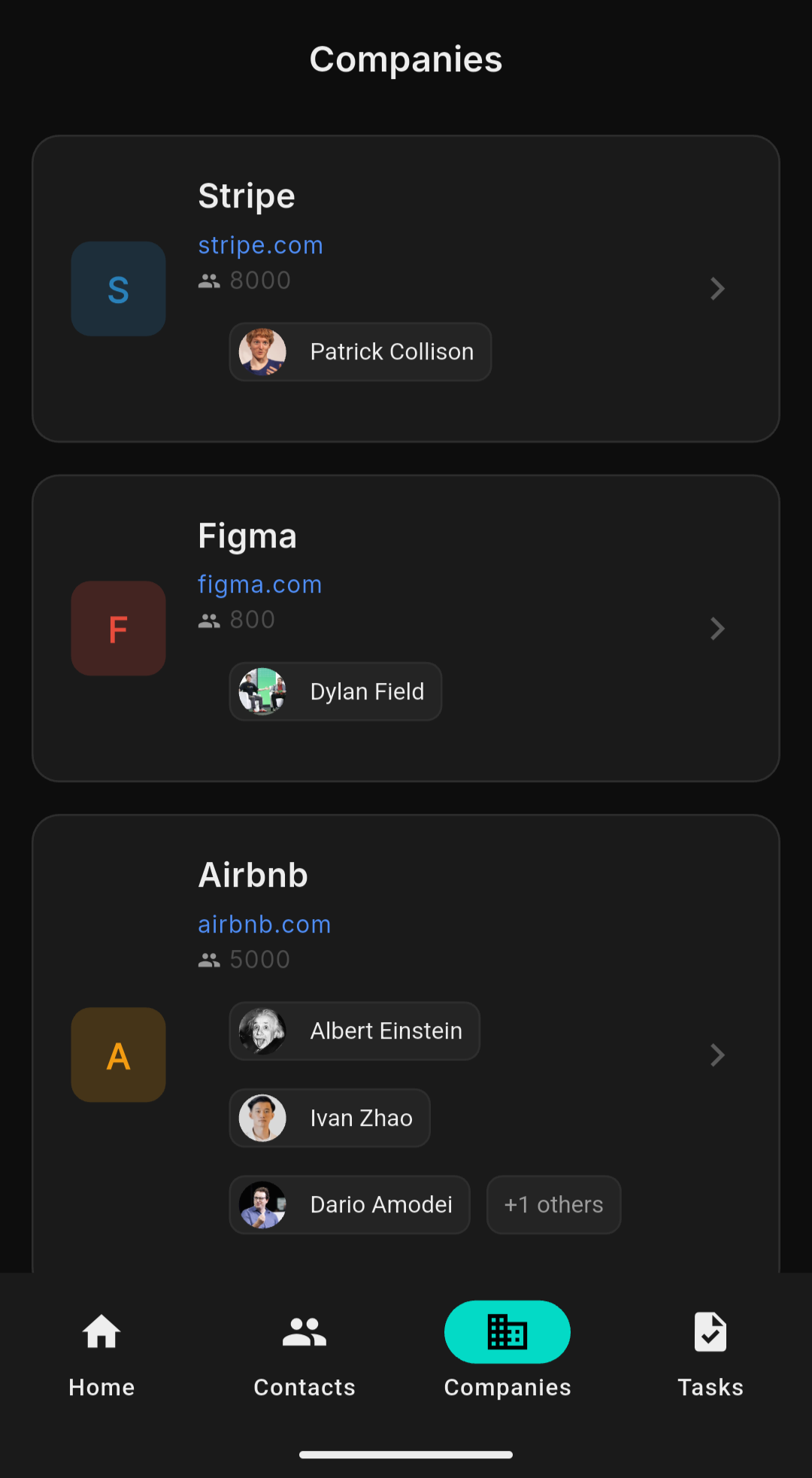
Companies
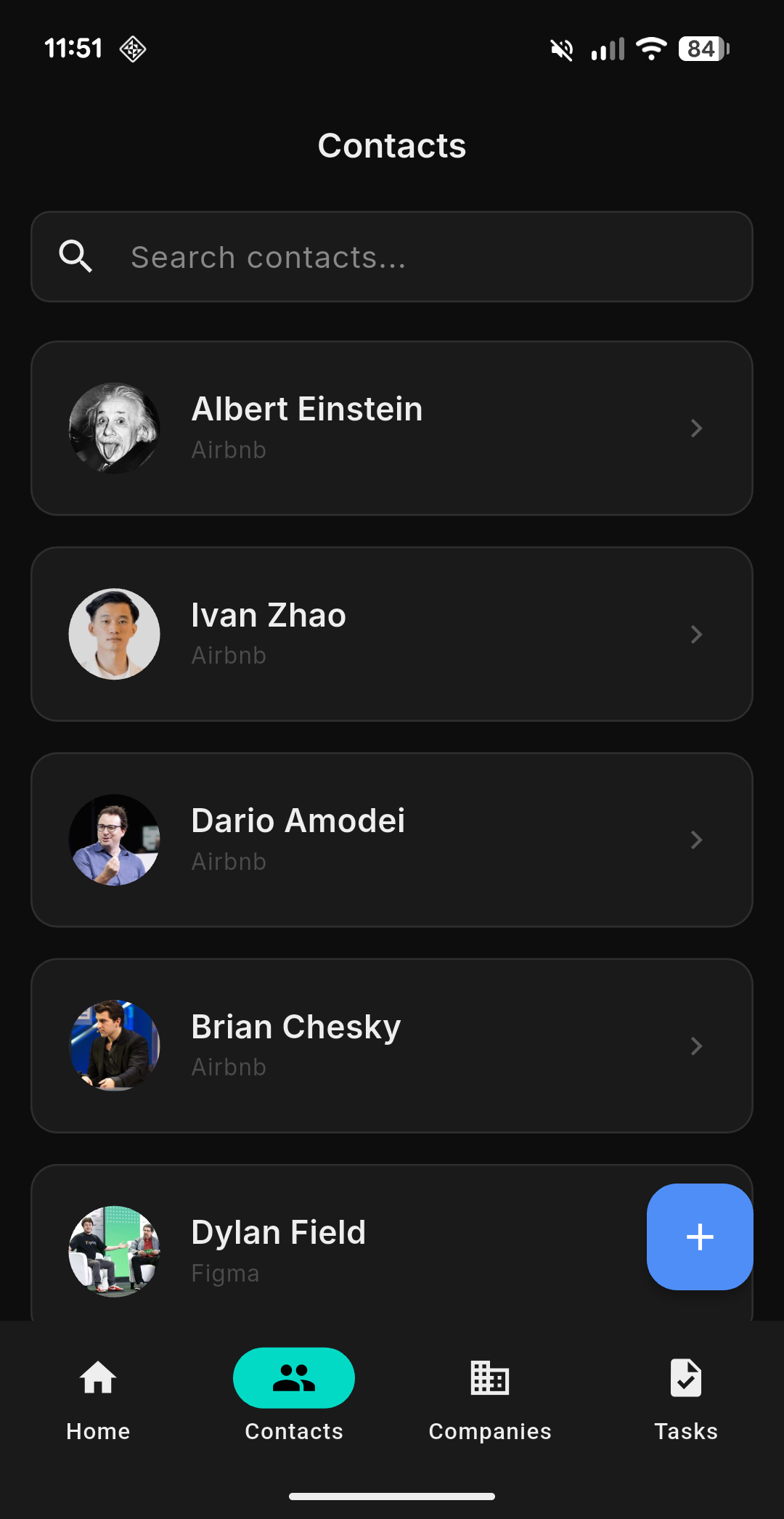
Today Contacts Tasks Scanner Dark Mode
Task detail

Built for how
you actually work.

Everything you need from your CRM, optimized for one-handed mobile use.

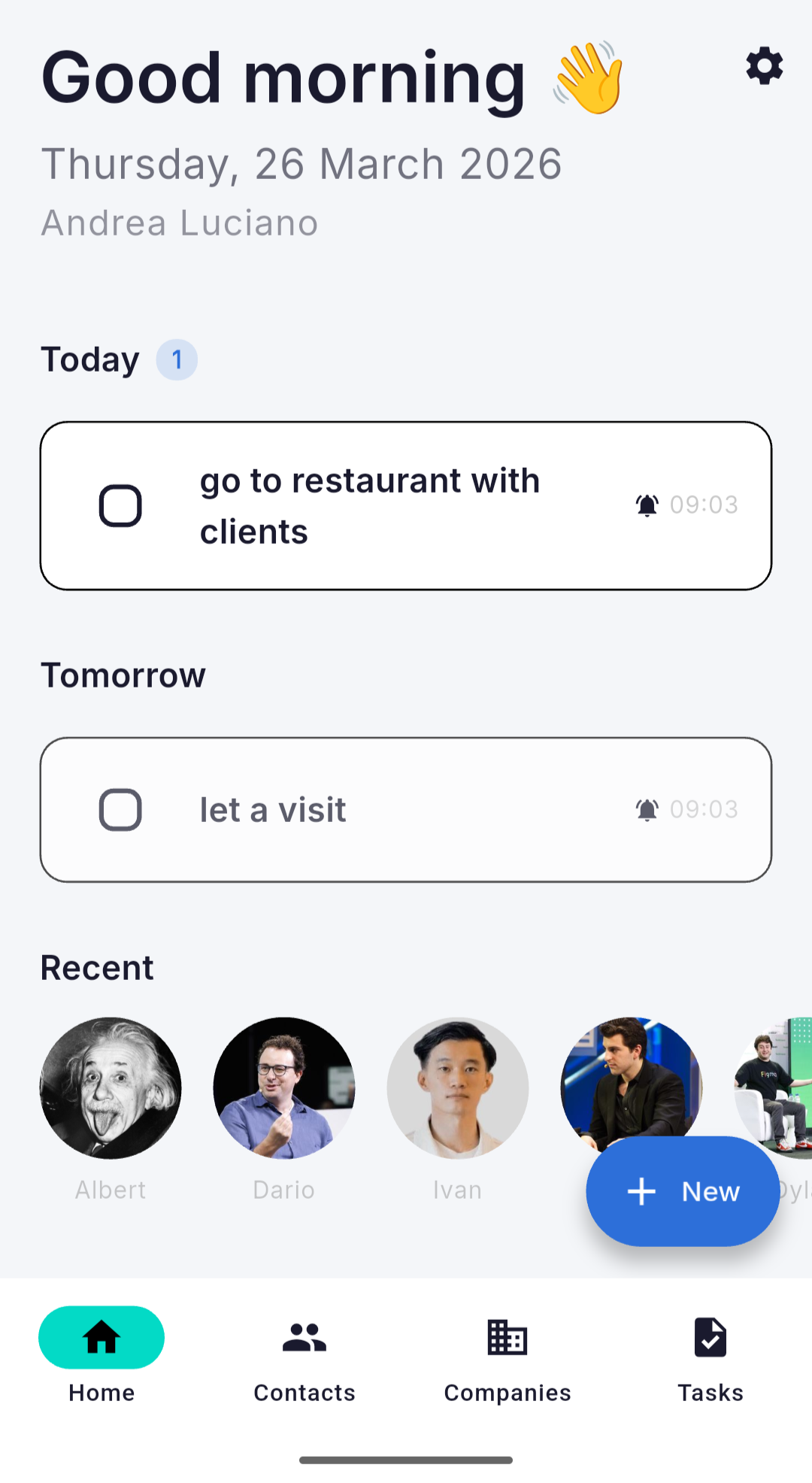
Today Screen
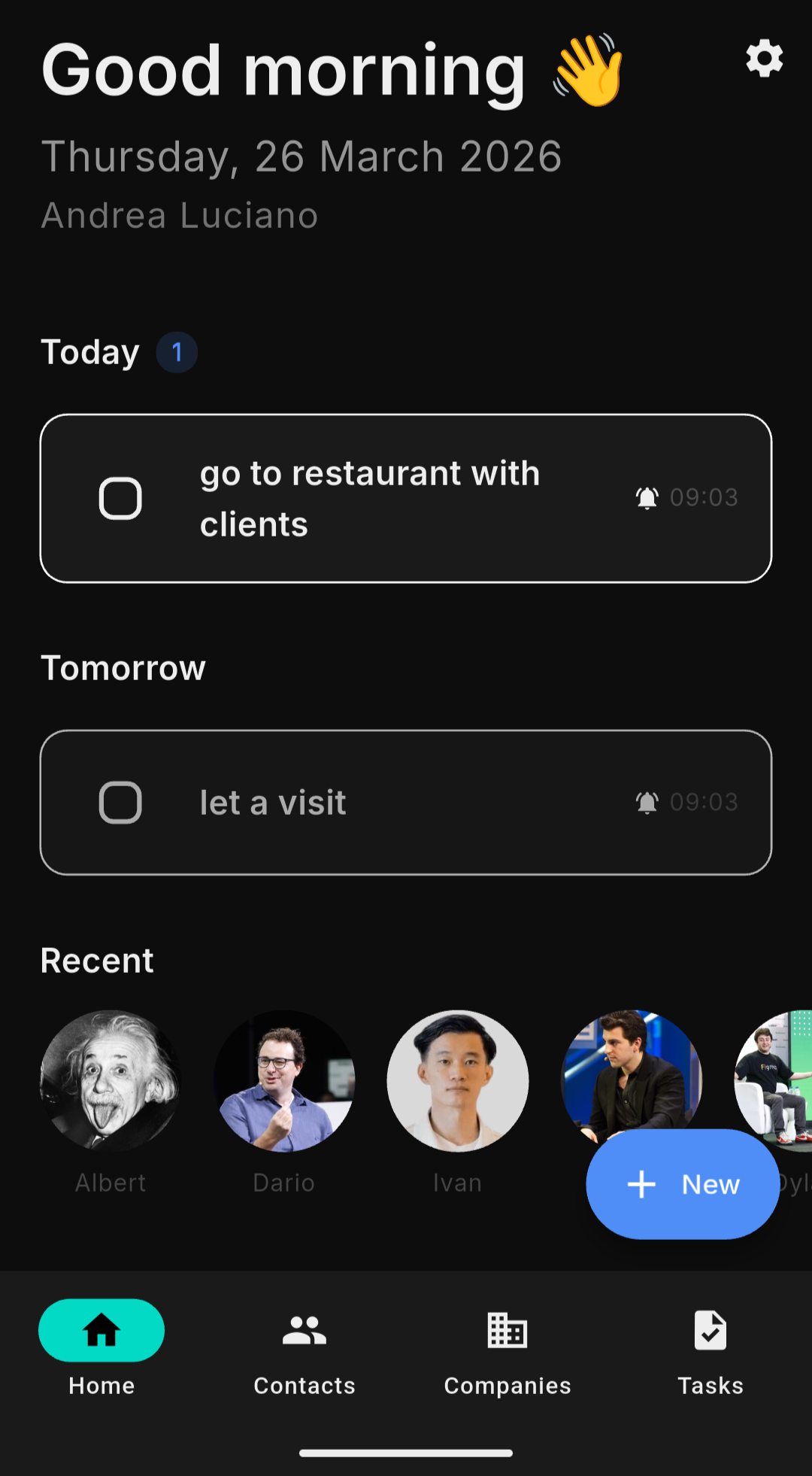
Your daily operations hub. Overdue tasks, today's priorities, tomorrow's agenda and recent contacts — all in one view every morning.
Today Screen
100% Self-Hosted
Connect directly to your own Twenty CRM instance. No middleman. No data collection. Your API token is stored in the device's secure keychain.
YOUR DATA FLOW
📱 App → 🔒 HTTPS → 🗄️ Your Server
We never see your data. Ever.
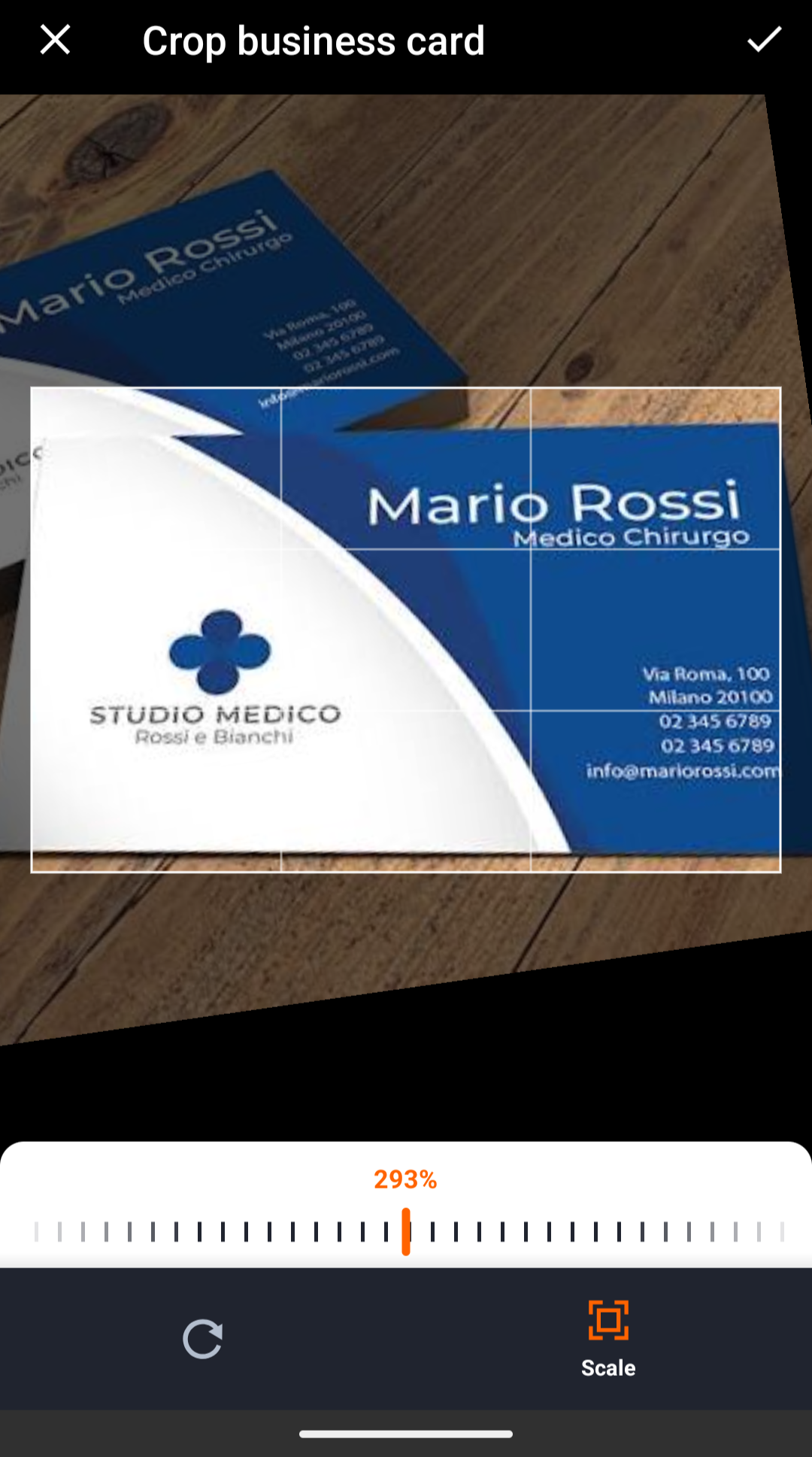
Business Card Scanner
Point, shoot, done. On-device OCR extracts name, email, phone and company. Fully offline — no data leaves your device.
Scanner
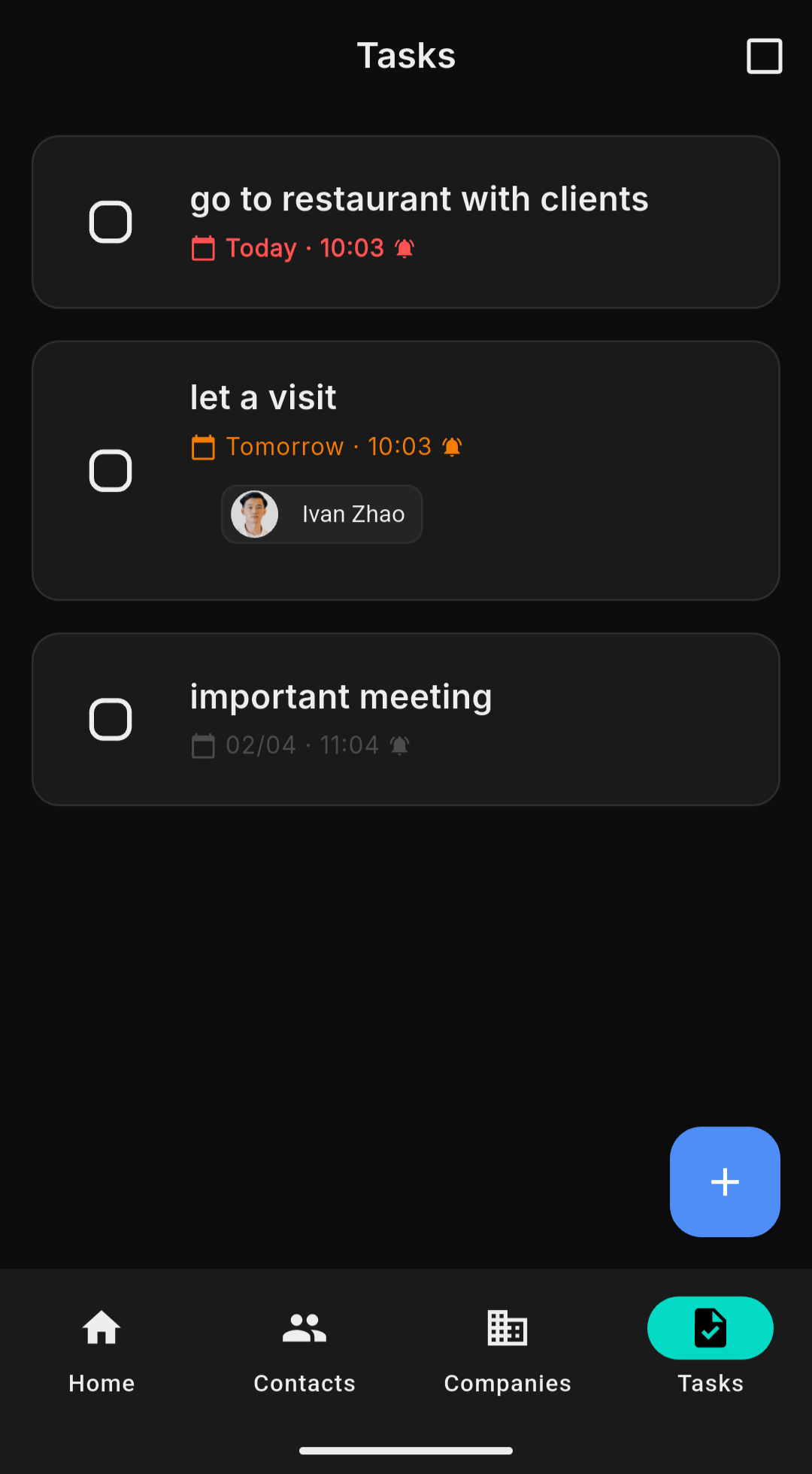
Smart Task Management
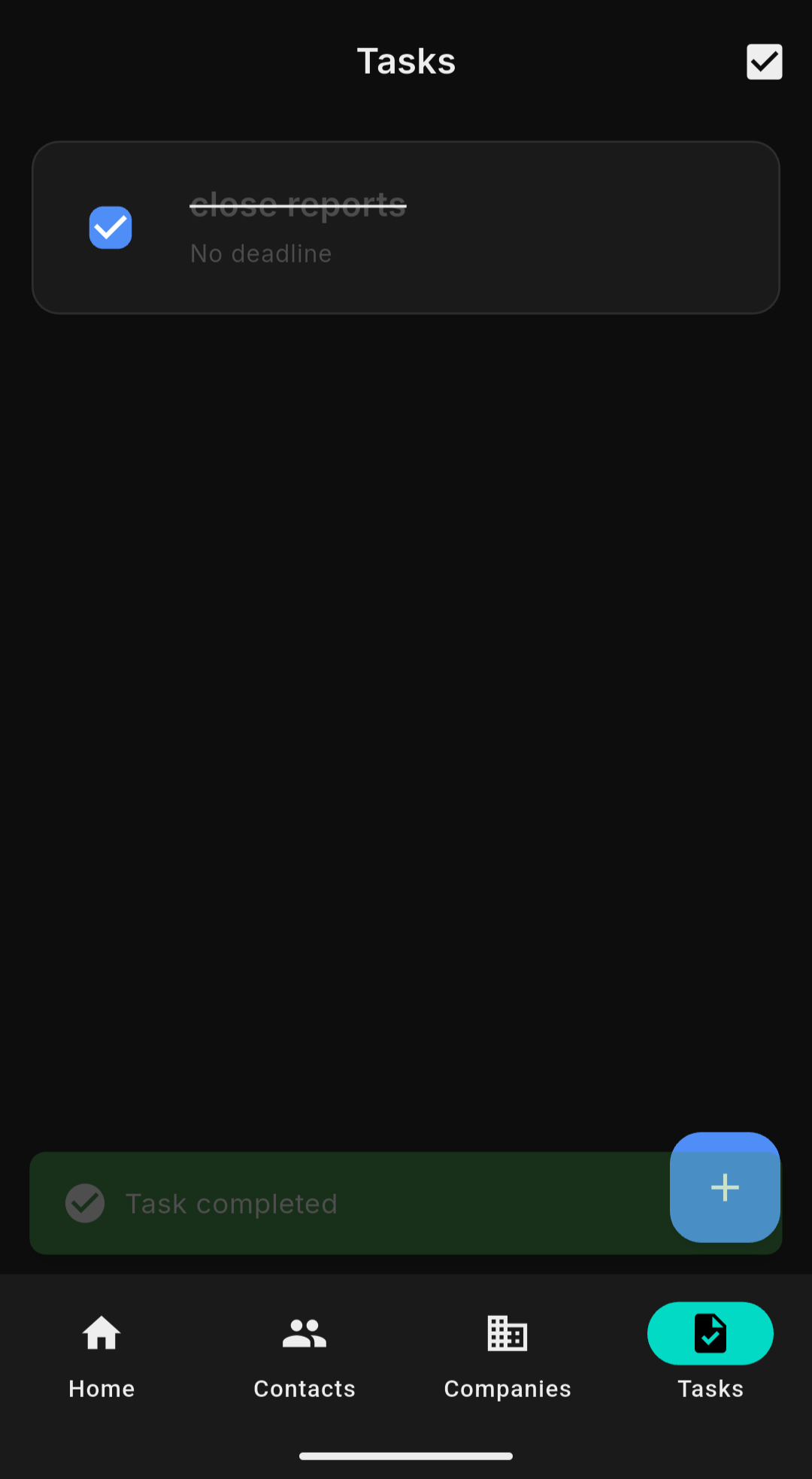
Tasks with due dates, time reminders and contact links. Local push notifications 30 minutes before deadlines. Never miss a follow-up again.
Tasks
Voice-to-Text Notes
Record a voice note, get it transcribed on-device, and save it directly to your contact. No typing required.
Dark & Light Mode
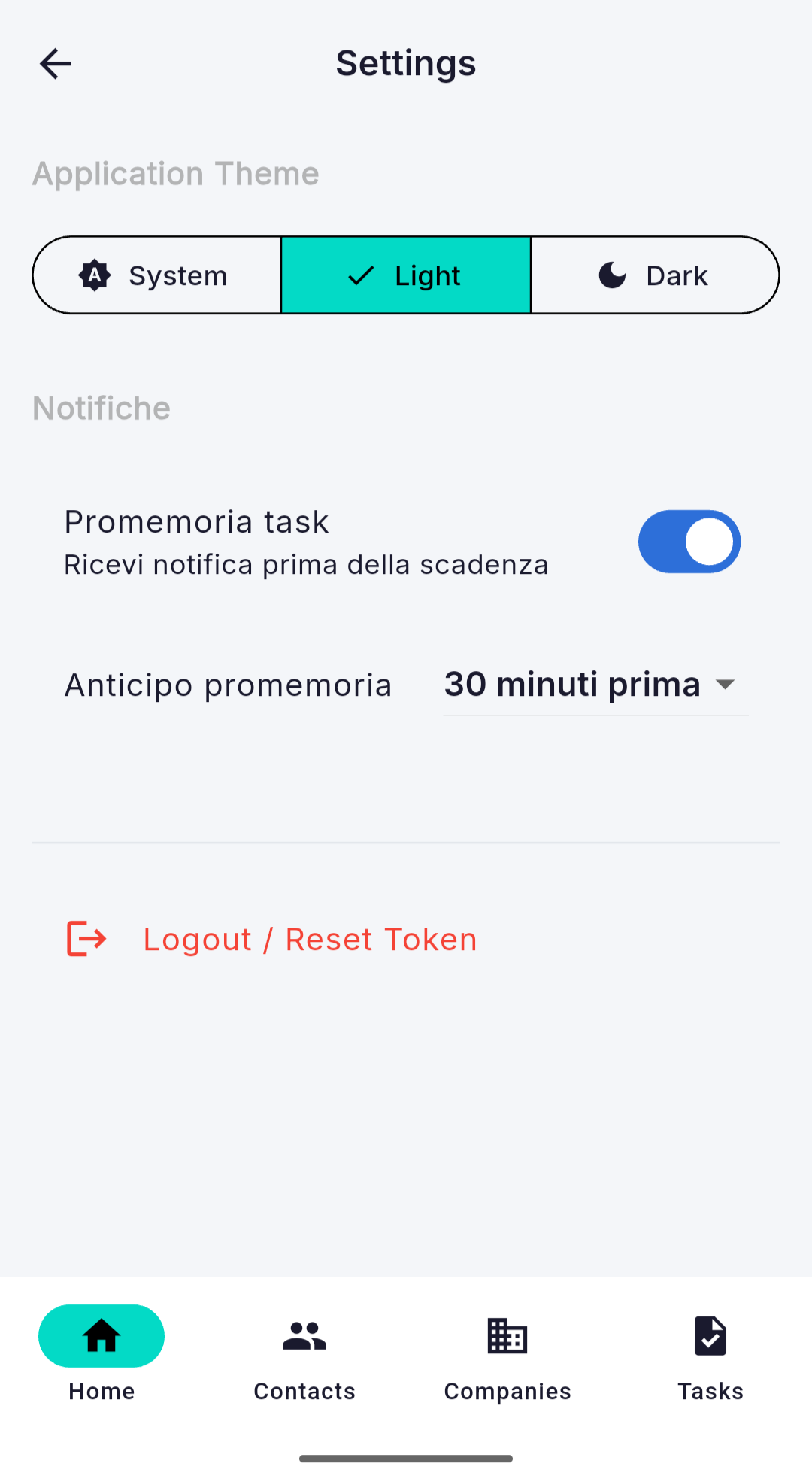
Follows your system preference automatically. Like this website.
Dark
Light
Currently showing: dark
Share as vCard
Export any contact as a .vcf file. Share via AirDrop, WhatsApp, email or save to your phone's address book.
OAuth 2.0 PKCE & Google SSO
Sign in with Google Workspace or web SSO via your system browser. RFC 7636 PKCE with rotating refresh tokens keeps credentials secure without third-party webviews.
iOS 18+ Live Contacts Provider
Seamless integration with Apple's native Contacts app under a dedicated Twenty container. Zero iCloud duplication, automatic cleanup on logout, completely private.
Built in the open.
Forever.

Venti is AGPL-3.0 licensed. Read the code, fork it, contribute to it. No black boxes.

AGPL
License
Flutter
Framework
iOS
+ Android + macOS
0
Data collected
# Connect to your instance   instance_url: "https://your-server.com" auth_methods: ["Google_SSO", "Email_2FA", "API_Key"]   # Direct connection. You're in.   data_stored_on_our_servers: false analytics_collected: false ads_shown: false open_source: true
View on GitHub Privacy Policy

Up and running
in 3 steps.

01
Install the app
Download Venti from the App Store or Google Play. Free, no account required.
02
Connect your instance
Enter your instance URL and sign in via Google / SSO (OAuth 2.0 PKCE), Email & Password with 2FA, or Admin API Key.
03
You're in
Your contacts, tasks and companies are instantly available. No sync delay, no loading screens.
Want to try first?
Use the built-in demo mode — no server required.
Try demo mode

Everything you need
to know.

Step-by-step guides for Google / SSO OAuth setup, platform features on iOS & Android, scanner privacy, and background alerts.

Showing 13 of 13 guides
OAuth 2.0 PKCE iOS Android
How do I configure Google / SSO (OAuth 2.0 PKCE) with Twenty CRM?

Venti signs in through Twenty CRM's native OAuth 2.0 authorization-code flow using PKCE (RFC 7636) opened in the system browser.

✨ Zero-Touch Automatic Setup (Twenty Cloud & Supported Instances):
If your Twenty CRM instance supports Dynamic Client Registration (RFC 7591) — standard on Twenty Cloud (twenty.com) — Venti registers the application automatically in the background! The Client ID is generated, securely saved, and pre-filled with zero manual configuration. You can skip the manual steps below and sign in immediately.

Manual Setup (Fallback for Self-Hosted Instances):
If your self-hosted instance does not have dynamic registration enabled, configure your application manually in 4 easy steps:

  1. Open Twenty CRM in your browser: Log into your instance and go to Settings → Applications.
  2. Create a new Application: Click Create Application (or New Application) and enter a name (e.g. "TwentyMobile").
  3. Register the Redirect URI: Copy the exact Redirect URI displayed in Venti's OAuth screen and paste it into the application settings on Twenty CRM:
Instance Setup Redirect URI to Register
Single-workspace (default self-hosted) https://<your-instance>/auth/oauth-propagator/callback
Multi-workspace / Custom Cloud https://twentymobilecrm.luciosoft.it/oauth/callback
One-Tap Copy: You do not need to guess the URI: Venti automatically queries your instance capabilities and displays the exact Redirect URI to register with a one-tap copy button right on screen.
  1. Obtain the Client ID: Save the application on Twenty CRM and copy the generated Client ID (and Client Secret, if issued).
  2. Sign in from Venti: Paste the Client ID into Venti and tap Sign in with Browser. Authorize with your Google or SSO account: the system browser safely redirects back into the app using the registered pocketcrm://oauth/callback scheme.
First-Time Login Note (Landing on Twenty Dashboard):
If your browser is not already logged in to Twenty CRM, authenticating will take you to your workspace dashboard first. Do not close the browser. Simply tap your browser's Back (Indietro) button on Android (or edge-swipe / tap Cancel and reopen on iOS): Twenty CRM will detect your active session and present the "Connect Venti to your account" consent prompt. Click Authorize to finalize and return to the app!
OAuth Troubleshooting iOS Android
Why does the browser land on my Twenty dashboard instead of redirecting back to the app?

When authenticating through the system browser for the first time without an existing browser session, Twenty CRM's Single Page Application (SPA) routes successful logins to the workspace dashboard instead of remembering the initial authorization prompt.

How to complete authorization in 2 seconds:
  1. Do not close or panic when you see your workspace dashboard.
  2. Navigate back to the authorization prompt:
    • On Android: Tap the browser's Back (Indietro) button or use the back gesture.
    • On iOS: Swipe from the left edge of the screen to the right to go back, or tap Cancel and tap Sign in with Browser again. Since Safari now retains your login session, Twenty CRM will open directly to the consent screen!
  3. Twenty CRM will recognize your authenticated session and display the consent modal: "Connect Venti to your account".
  4. Click Authorize: the browser will immediately trigger the callback and return you to Venti logged in!

Note: Once your browser has authenticated your session, subsequent logins or token refreshes will detect your session immediately and display the consent prompt directly without landing on the dashboard.

OAuth & Applications
Why do I see multiple "Venti" (or "TwentyMobile") applications in Twenty CRM Settings?

Venti supports RFC 7591 Dynamic Client Registration. When connecting to a supported instance (like Twenty Cloud), the app registers itself automatically with the CRM and securely stores its assigned Client ID on your device.

When you uninstall and reinstall Venti:

  1. Your device's operating system (iOS or Android) completely wipes the app's local secure storage, including the previous Client ID.
  2. On the fresh install, Venti detects no local credentials and automatically requests a new registration from Twenty CRM.
  3. Twenty CRM registers the new install with its own unique Client ID, resulting in a new "TwentyMobile" entry in Settings → Applications.
Safe to Clean Up: Only the newest application entry is used by your active install. Older entries from previous installations can be safely deleted in Twenty CRM under Settings → Applications at any time.
Email & Password 2FA & OTP
Can I log in with standard Email and Password? Does it support 2FA and Captchas?

Yes, absolutely. Standard credentials login is fully supported for all workspace members and administrators.

  • Two-Factor Authentication (2FA / OTP): If your Twenty account has 2FA enabled, Venti automatically detects the pending challenge and opens a dedicated 6-digit OTP verification screen with smart clipboard pasting.
  • Automated Captcha Solving: If your Twenty CRM instance enforces Cloudflare Turnstile or Google reCAPTCHA, Venti resolves the verification challenge invisibly in the background so you never get blocked by security checks.
  • Workflow Execution: Logging in with Email & Password provides a user-scoped JWT token, which is required if you plan to execute Twenty manual workflows.
API Key Developers
How do I connect using a Twenty CRM API Key?

API Key authentication is ideal for quick administrator access or developer environments:

  1. In Twenty CRM, navigate to Settings → Developers → API Keys.
  2. Click Create API Key, assign your desired permissions (e.g. read/write access), and copy the secret token.
  3. In Venti, select Login with API Key and paste the key.
Upstream Workflow Limitation: Twenty CRM's GraphQL API restricts executing manual workflows when authenticated via an API Key (returns 403 Forbidden). For manual workflow triggers, use Email & Password or Google SSO login.
iOS 18+ Exclusive Apple Contacts
[iOS 18+] How do I display Twenty CRM people in the native Apple Contacts app?

Venti supports Apple's native Contacts Provider API introduced in iOS 18:

  1. Open Venti and go to Settings → iOS Contacts.
  2. Toggle on "Show Twenty people in iOS Contacts".
  3. Open the native Apple Contacts app on your iPhone or iPad: you will see a live, dedicated container named Twenty.
No iCloud Pollution: CRM contacts remain strictly in the live Twenty container. They are not merged into your personal iCloud address book. Disabling the toggle or logging out of Venti cleanly removes the container without leaving duplicate contacts behind.
Security iOS Android
[iOS & Android] Why does Venti use the system browser instead of an in-app WebView for SSO?

Embedded in-app WebViews present serious security concerns for federated login:

  • Protection Against Credential Sniffing: Embedded webviews allow host applications to inspect entered passwords and cookies. Major identity providers (including Google) intentionally block logins from generic WebViews with errors like disallowed_useragent.
  • Native Platform Security: Venti uses Chrome Custom Tabs on Android and ASWebAuthenticationSession on iOS. Your credentials are typed strictly into Google or your SSO provider.
  • Ephemeral Isolation: Authentication sessions run with ephemeral flags, guaranteeing that shared or corporate devices never leak cookies or inherit previous users' accounts.
Offline OCR iOS Android
How does the Business Card Scanner work? Does it send photos to external AI servers?

The Business Card Scanner lets you capture new leads on the go in seconds:

  1. From the Contacts screen, tap the Scan Card button.
  2. Capture a photo of the card with your camera, or pick an existing image from your photo album.
  3. The on-device OCR engine parses full names, company, email addresses, phone numbers, and websites with smart heuristics.
  4. Review and edit any extracted fields, then tap save: Venti creates the contact in Twenty CRM immediately with optimistic UI updates.
100% Offline & Private: OCR text recognition runs entirely on your smartphone's hardware. Your card photos and contact details are never sent to third-party AI APIs or external OCR cloud services.
Local Notifications iOS Android
How do task reminders and notifications work on iOS and Android?

Venti schedules local push notifications directly on your phone so you never miss an important customer follow-up:

  • Schedule Timing: Tasks with scheduled due dates trigger a notification 30 minutes before the deadline as well as at the exact due time.
  • Android Setup: Android aggressive power management (Doze mode) can delay alarms. For instant reminders, navigate to Settings → Apps → Venti → Battery and set it to "Unrestricted".
  • iOS Setup: Ensure you accept the notification permission prompt during onboarding, or verify under iOS Settings → Venti → Notifications.
vCard (.vcf) Sharing
Can I export contacts or share them with colleagues via vCard (.vcf)?

Yes. From any Contact Detail view, tap the Share action in the top AppBar.

Venti generates a standard RFC vCard file containing the contact's full name, linked company, emails, phone numbers, and address. You can send it instantly via AirDrop, WhatsApp, Telegram, email, or import it into your personal address book.

Workflows Troubleshooting
Why do I receive a 403 Forbidden error when triggering a manual workflow?

In Twenty CRM, the backend GraphQL mutation for triggering manual workflows requires a verified User Identity (JWT token).

  • If you logged in using an API Key, Twenty CRM's server treats the connection as an automated system key and returns FORBIDDEN (403) when attempting to run user workflows.
  • How to fix: Log out and reconnect using your Email & Password or Google / SSO. This establishes a full user session and enables the interactive Slide-to-Execute workflow button.
Dynamic Objects GraphQL
Does Venti support custom dynamic objects and custom fields created in Twenty?

Yes, with full schema introspection! Venti dynamically queries your Twenty CRM metadata schema over GraphQL.

  • Standard & Custom Objects: In addition to Contacts, Companies, and Tasks, all custom workspace entities (such as Opportunities or custom tables) appear in the More tab.
  • Customizable Layout: Tap the ⚙ settings icon on any dynamic object detail view to toggle field visibility and adjust display order. Your preferences are persisted securely on your phone.
  • Composite Fields: Full support for complex data types including Currency, Address, Phone, and Relation Pickers (linking companies and contacts).
100% Self-Hosted Zero Tracking
Is any customer data or telemetry routed through Luciosoft servers?

No, zero CRM data, customer records, or credentials are ever collected or intermediated.

Venti connects directly from your mobile device to your own Twenty CRM instance over encrypted HTTPS. Sensitive tokens and credentials never leave your hardware-backed keychain (Apple Keychain / Android Keystore).

The code is 100% open-source under the AGPL-3.0 license on GitHub for full auditability.

Team Onboarding Venti Magic
How does Single Sign-On (OAuth) work for teams? Will it create duplicate apps in Twenty CRM?

No duplicate apps are created — team onboarding is seamless and clean!

  • Shared App per Workspace: When the first user or workspace admin connects Venti to their Twenty CRM instance via SSO / Google login, its verified Client ID is published to the workspace entry, so teammates reuse that same authorized application named Venti instead of creating their own.
  • Zero-Knowledge Shared Registry: Subsequent team members entering the same workspace URL automatically discover this pre-existing Client ID. They don't have to navigate to CRM Settings, create applications, or copy-paste UUIDs. Only applications that the instance itself confirms (and that are named Venti) are accepted, and lookups are rate-limited.
  • Self-Healing on Deletion: If a CRM admin ever deletes the Venti application in Twenty CRM (Settings → Applications), the next check detects the removal and purges the stale registry record. On instances that support Dynamic Client Registration the app re-provisions itself automatically; on self-hosted instances without it, Venti simply asks for a new Client ID.
  • Zero-Knowledge Guarantee: The shared registry only stores the public hostname mapped to the public Client ID UUID (plus timestamps and the previously overwritten IDs, for auditing). It never sees, stores, or handles secrets, passwords, access tokens, refresh tokens, user accounts, or CRM data. You can disable it entirely or self-host it with --dart-define=OAUTH_REGISTRY_URL=.

No guides or FAQ matching your search query.


Your CRM.
Finally mobile.

Download Venti and take control of your customer relationships — anywhere.

Download on App Store Get it on Google Play